Select projects to transfer from Axiom Capital Planning
After setting up the transfer from Axiom Capital Planning, select the projects to transfer.
NOTE: By default, any previously transferred projects will transfer again unless you disable them. See Manage transferred capital projects for more information on enabling or disabling transfers.
-
On the second page of Transfer Capital Projects to Financial Planning, select the projects to transfer to Axiom Financial Planning. Click the checkbox next to the CAPREQ column to select projects to transfer.
TIP: If the list of projects is long, click the filter icon (
 ) on the left in the gray header, and then use the options to filter the list.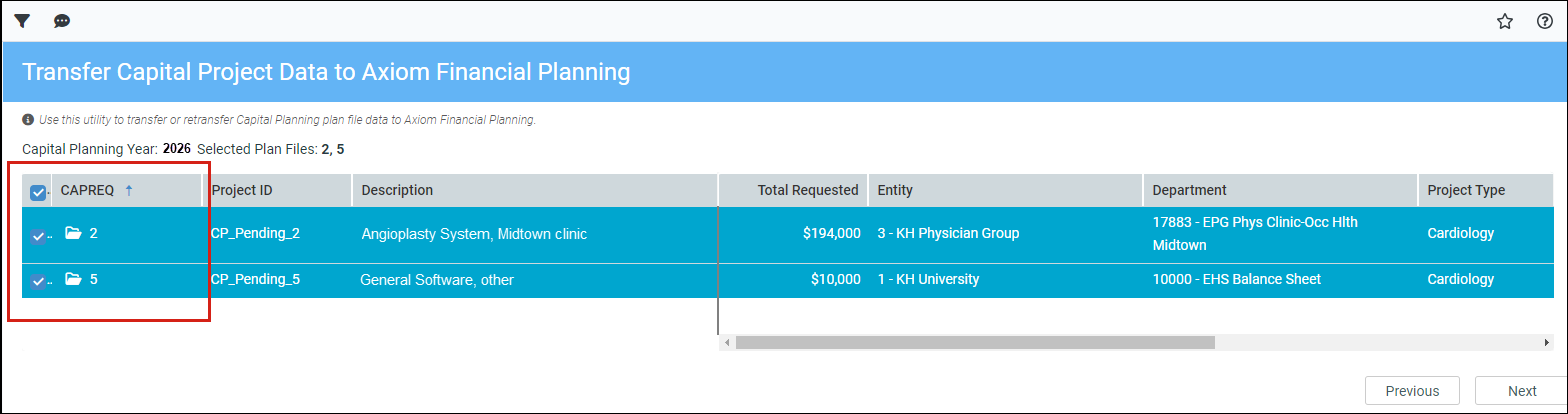
TIP: Click the folder icon next to the CAPREQ number to view the plan file for a project in a separate tab. From here, you can make any necessary changes to the project. However, to propagate the changes in the Transfer Capital Projects to Financial Planning utility, refresh the utility.
-
Click Next.
-
In the Model column on the third page of Transfer Capital Projects to Financial Planning, select the Model from the dropdown list.
NOTE: Want to change a selected project or add one you overlooked? Click Previous to return to the list of projects.
- (Optional) in the Node description field, enter a new name for each node.
- Click Submit, review the confirmation prompt, and click OK.
- The Transfer Summary page lists the source file group and the plan file number for each transferred plan file, including any that were previously transferred:
- To transfer another project, click Transfer another plan file.
If you did not select to build nodes on the first page of the utility, click Build/rebuild nodes to go to the Node Rebuild Utility and build nodes from your imported project data.
-
When finished, close the utility.
NOTE: If you adjust capital project data, you can transfer the project again to update it in Axiom Financial Planning. However, you will need to open and save or rebuild the Financial Planning plan file in Axiom Financial Planning to include the changes. If you delete a project in Axiom Capital Planning, you must also delete it in Axiom Financial Planning.
For information on how to work with transferred projects in Axiom Financial Planning, see Work with capital project data in plan files.
